MailChimp Integration
To connect Mailchimp to your website you need to go to Website/Funnel Settings and select Applications. After that click on Add Application on the right side.

Then click on Connect for Mailchimp integration

If you don't know your Mailchimp API Key follow this steps:
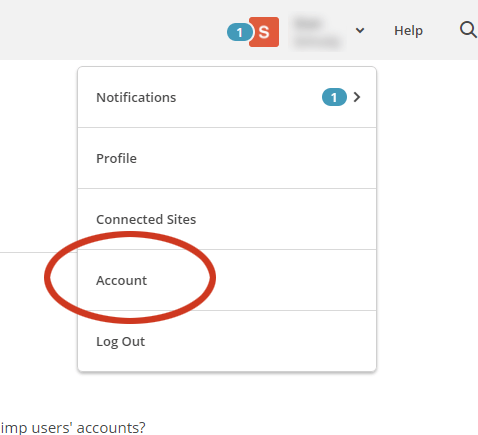
1) Login to Mailchimp and on the top-right click on your profile and click on Account.
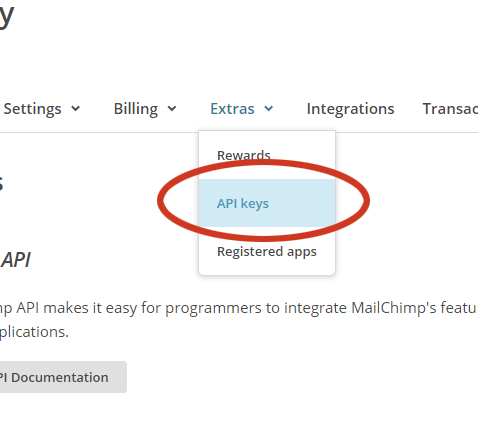
2) Click on Extras and then API Keys.
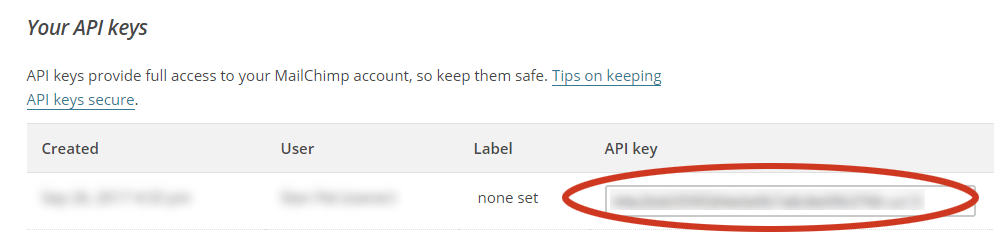
3) Copy the API Key and enter it in your Mailchimp popup in the builder and click on Save and Verify.
Once connected now every form, members or store will have the option to send the client information to Mailchimp to make your email marketing campaigns. Let's see below how to send the inputs from a form to your Mailchimp lists.
Click on a Form Widget and then on the Settings Icon.
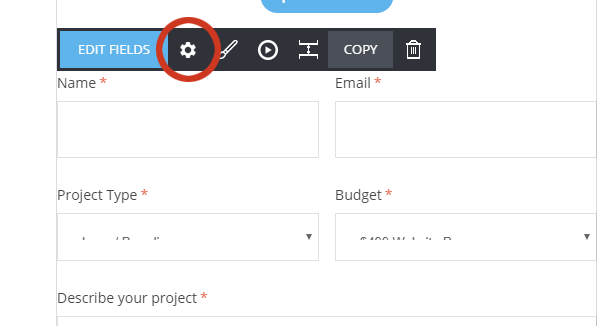
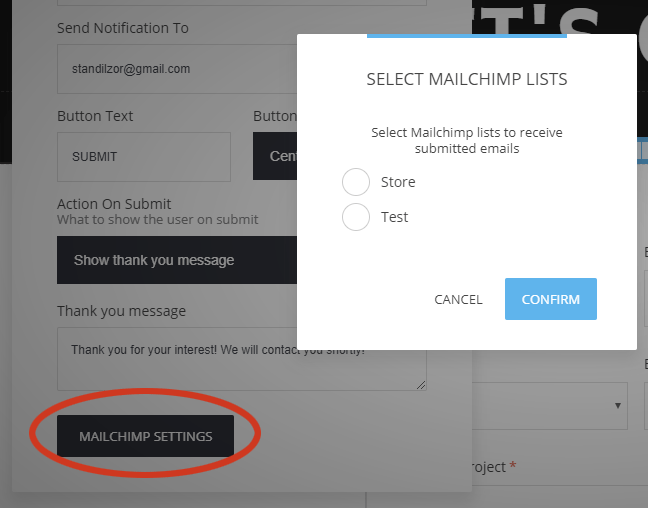
When Mailchimp is connected you will have Mailchimp Settings button to click on that will show all your lists in your Mailchimp account => select the list you want to send the form information to.
BUT how to send all the form fields to fields in your Mailchimp list? Here's how:
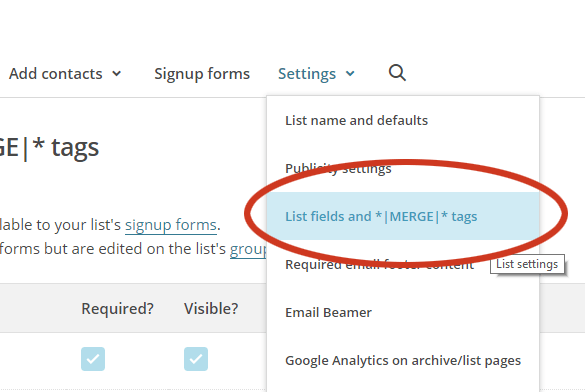
1) Go to your Mailchimp -> Lists and select the list you want to send data. In settings select on List fields and *|MERGE|* tags.
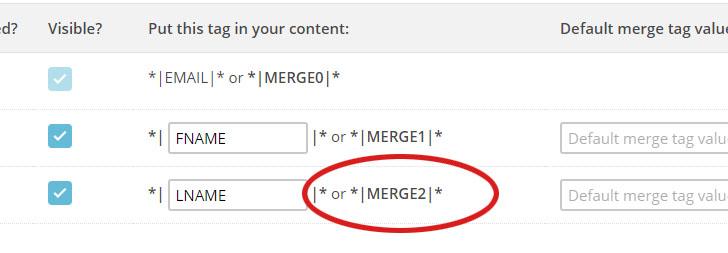
2) You will see the existing fields. To add more fields click on Add A Field. You will see that there's a field to add tag name. You can copy in this case MERGE2 and paste it into the settings of the field that you want to send the data from.
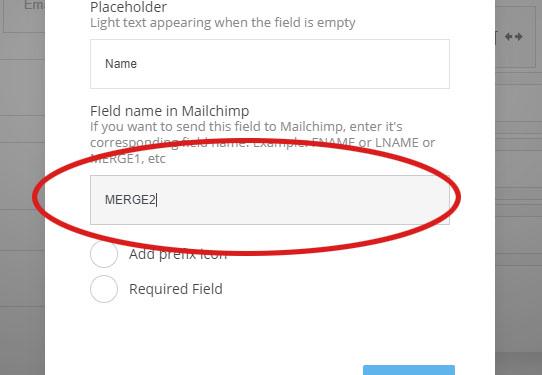
This way all the information form each field in your form can be sent to your Mailchimp list with the respected fields there.
Related Articles
ActiveCampaign Integration
To connect ActiveCampaign to your website simply go to the Website/Funnel Settings menu and select Applications. Then click Add Application on the right-hand side. Afterward, click on Connect for the ActiveCampaign integration, and add your ...MailerLite Integration
To connect MailerLite to your website simply go to the Website/Funnel Settings menu and select Applications. Then click Add Application on the right-hand side. Afterward, click on Connect for the MailerLite integration, and add your MailerLite API ...MooSend Integration
To connect MooSend to your website simply go to the Website/Funnel Settings menu and select Applications. Then click Add Application on the right-hand side. Afterward, click on Connect for the MooSend integration, and add your MooSend API key. If you ...GetResponse Integration
To connect GetResponse to your website simply go to the Website/Funnel Settings menu and select Applications. Then click Add Application on the right-hand side. Afterward, click on Connect for the GetResponse integration, and add your GetResponse API ...AWeber Integration
Integrating with AWeber is very easy. To start, navigate to the Applications section in your website or funnel settings and click on Add Application: Choose AWeber on the next screen and follow the on-screen instructions to connect your AWeber ...