ActiveCampaign Integration
To connect ActiveCampaign to your website simply go to the Website/Funnel Settings menu and select Applications. Then click Add Application on the right-hand side.
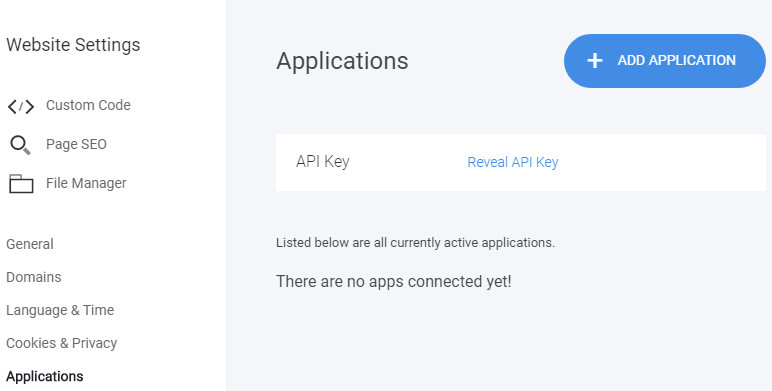
Afterward, click on Connect for the ActiveCampaign integration, and add your ActiveCampaign host and API key.

If you do not know your ActiveCampaign's API Key, follow these steps:
1) Login to ActiveCampaign and click on My Settings->Developer;
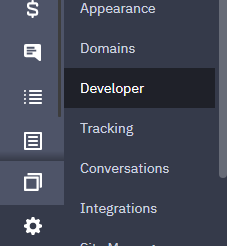
2) Copy the API Key and host and enter them in your ActiveCampaign's popup in the builder, Save, and Verify.

Once connected, every form, member or store will have the option to send the leads to ActiveCampaign.
Let's see how to send inputs from a form to your ActiveCampaign lists:
- Add a form widget
- Click on the form widget and open the controls

- Click on the ActiveCampaign Settings button and select a list you’d like to send the data to
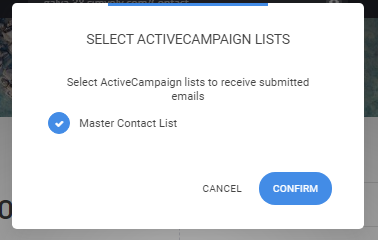
This way, the form will send all the leads to ActiveCampaign.
4.You can send form fields to custom fields in ActiveCampaign. Once the list is selected, you should add the corresponding field in ActiveCampaign to each form field's settings:
- Click on Edit Fields;
- You will see that there is a field to add tag names. Copy FIELDNAME or %FIELDNAME% and paste it into the settings of the field, that you want to send the data from.;


- This way all the information form each field in your form can be sent to your ActiveCampaign list with the respected fields there.
Note that the required fields in ActiveCampaign must be added and the fields will always be sent as type TEXT.
All the Tags will be sent to ActiveCampaign.
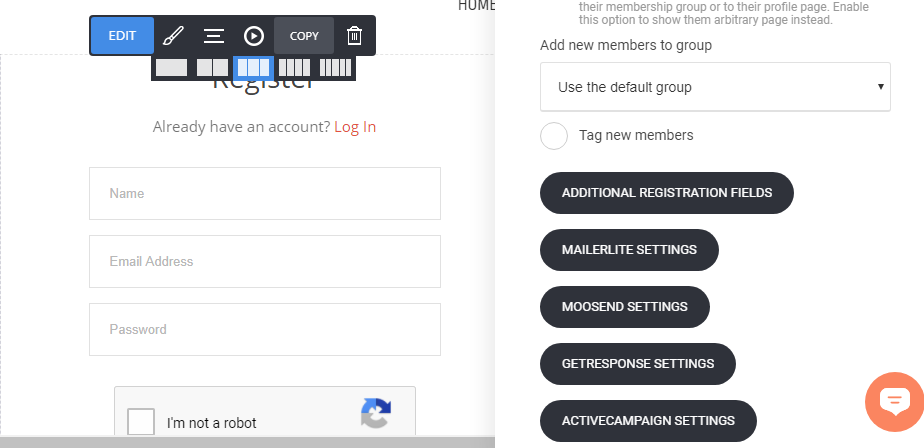
You can connect lists to the Checkout widget and Membership registration/login page:
Connecting to a Checkout Widget:

Connecting to Membership Registration/login widget:
You can go into the settings of the Membership Registration/Login widget that you can add on any page and adjust the List and Fields like in the Form widget.
(For the system Membership Reg/Login page: Click on Pages -> System Pages -> Membership Registration/Login page)
Related Articles
MailChimp Integration
To connect Mailchimp to your website you need to go to Website/Funnel Settings and select Applications. After that click on Add Application on the right side. Then click on Connect for Mailchimp integration If you don't know your Mailchimp API Key ...MailerLite Integration
To connect MailerLite to your website simply go to the Website/Funnel Settings menu and select Applications. Then click Add Application on the right-hand side. Afterward, click on Connect for the MailerLite integration, and add your MailerLite API ...MooSend Integration
To connect MooSend to your website simply go to the Website/Funnel Settings menu and select Applications. Then click Add Application on the right-hand side. Afterward, click on Connect for the MooSend integration, and add your MooSend API key. If you ...GetResponse Integration
To connect GetResponse to your website simply go to the Website/Funnel Settings menu and select Applications. Then click Add Application on the right-hand side. Afterward, click on Connect for the GetResponse integration, and add your GetResponse API ...AWeber Integration
Integrating with AWeber is very easy. To start, navigate to the Applications section in your website or funnel settings and click on Add Application: Choose AWeber on the next screen and follow the on-screen instructions to connect your AWeber ...